
To ensure the successful and timely delivery of your volumes, you need to provide the required redemption details for each trade.
The information required depends on the registry and the trade. The platform will guide you through the relevant fields for each trade.
Step 1: Identify trades requiring your attention
Navigate to the Trades section by clicking the second button in the menu on your left side of the screen.

Then locate the Beneficiary column in the trade list that appeared.
Look for trades with any of the following statuses:
- Allocate volumes
- Add details
- Add EACs purpose
- Update EACs purpose
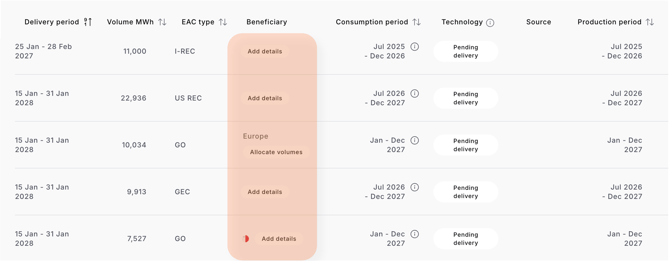
These statuses indicate that additional information or action is required.
Important: If a status is highlighted in red, the trade requires your immediate attention.
Step 2: Provide registry-specific delivery details
This step applies only to trades with the status “Allocate volumes” or “Add details.”
For the relevant trade, click the blue button next to the beneficiary's name.
Follow the on-screen instructions to provide the delivery information required by the relevant registry. The fields may vary depending on the registry and the trade.
Complete all required fields and click Save details at the bottom of the screen to continue.
Step 3: Specify the EACs' purpose
For trades requiring EACs purpose details, you will be prompted to provide information about the intended redemption.
Depending on the trade, you may be asked to specify:
- Redemption on behalf of: Whether the certificates are being redeemed on behalf of the beneficiary or one of its subsidiaries.
- Consumption period: The year or period in which the certificates are consumed.
- Usage reason: The reason for retiring the certificates on behalf of the beneficiary.
For the usage reason, we provide a suggested format:
Certificates were retired on behalf of [Beneficiary] for [YYYY] consumption.
Where beneficiary and year will be prefilled.
Additional fields may be required depending on the registry and the trade. Follow the on-screen instructions, complete all required fields, and click Save details at the bottom of the screen to continue.
If you are unsure which information to provide for a particular field, contact STX by submitting the form here.