
Any filters applied will determine which data is included in the export files.
To enhance the relevance of your report prior to export, you may apply pre-filters to the data set. Available filtering criteria include:
-
Beneficiary
-
Consumption Country
-
Consumption End Year
-
Consumption Start Year
-
Consumption Year
-
Delivery Status
-
Invoicing
-
Missing information
-
Pending allocation
-
Pending PO number
-
PO number
-
Requires action
-
Technologies
-
Volume
NOTE: This article specifically outlines the process for filtering by "Consumption year is 2026". Any other filtering follows exactly the same steps.
To proceed, follow these steps:
- Navigate to the Trades section of the Climate Tech platform from the main dashboard.
- Click on the search bar labeled 'Find.'
- In the list of available properties displayed, choose ‘Consumption year'.
- To select all orders with the consumption year 2026, select operator 'Contains :'.
- To select all orders with the consumption year 2026, type the desired year after the ':' (2026 in this case).
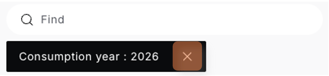
- The filter you have applied will appear on the screen, and only the orders matching this filter will be displayed. These filtered orders are the ones that will be included in the documents exported from the Climate Tech platform.
- To remove an applied filter, click the "x" next to the specific filter.
To efficiently download documents in bulk, visit this page.
Didn't work as expected? Let us know here.